
Group photos

 Remove
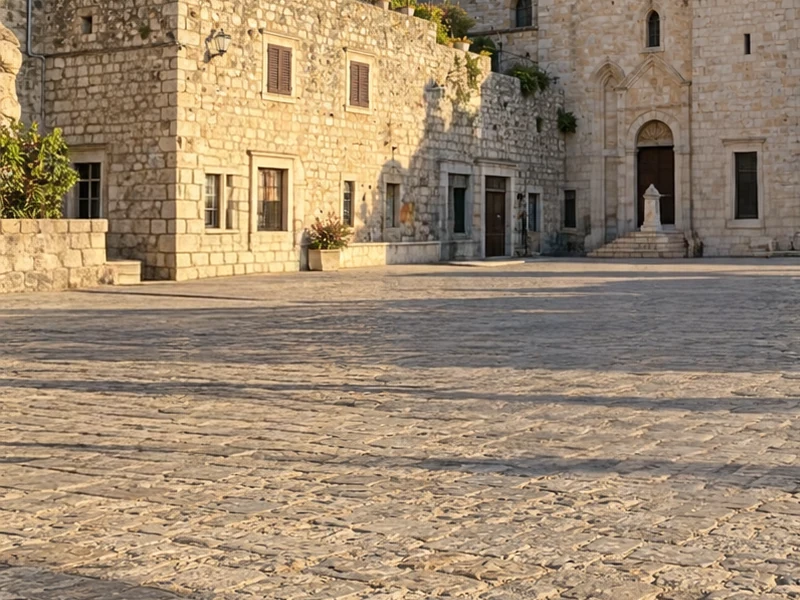
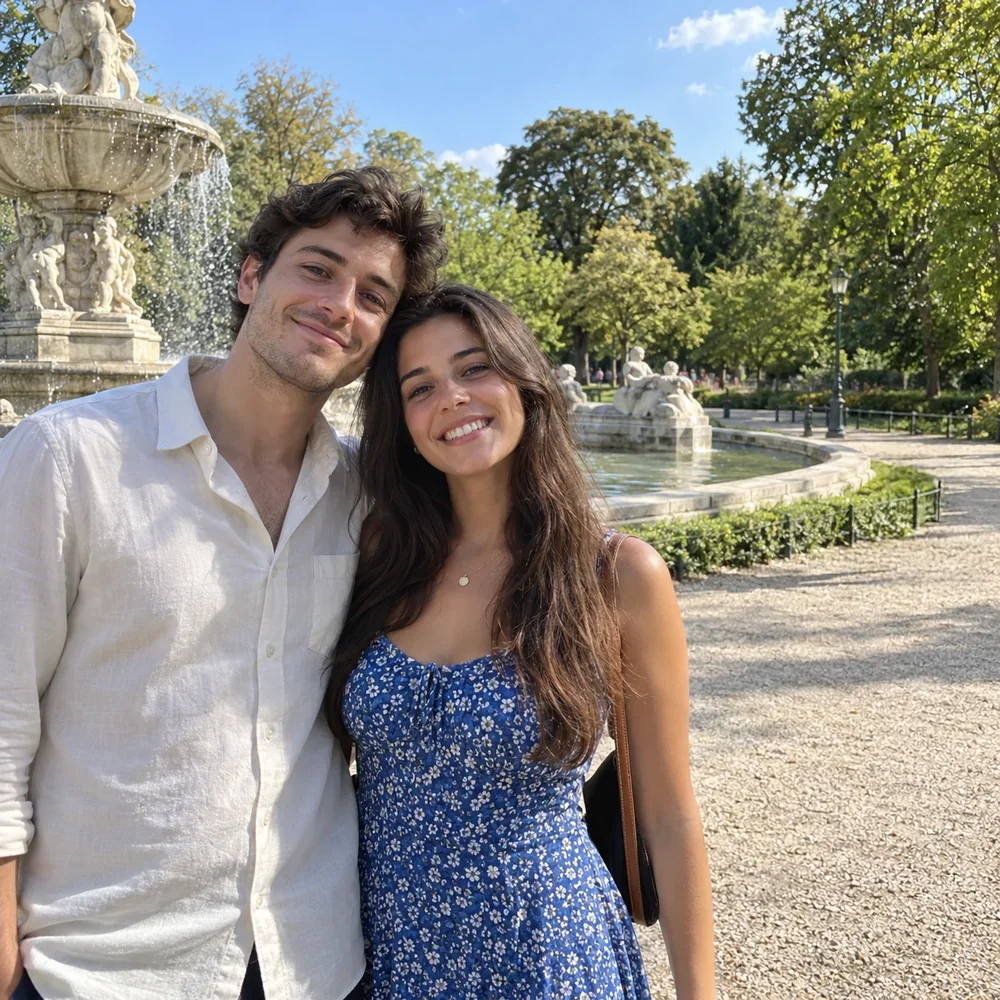
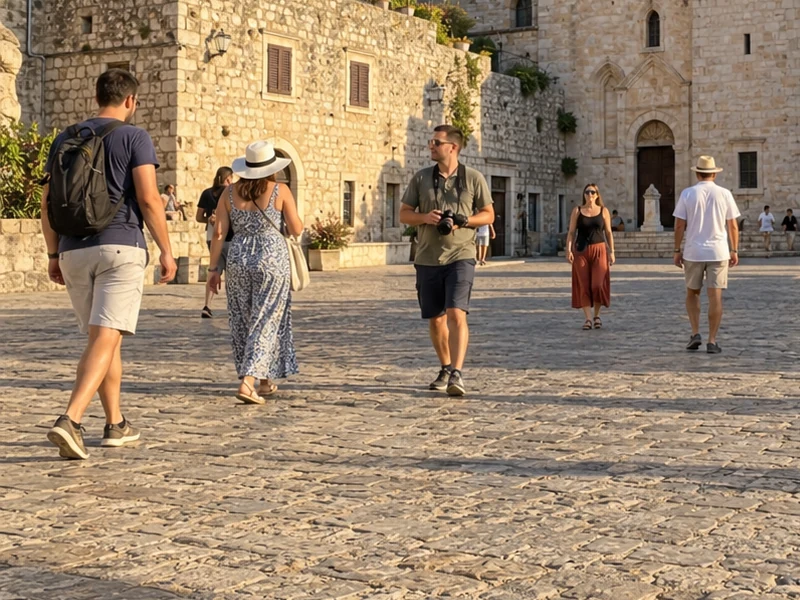
Real results from PixRemove: the original on the left, the same photo after brushing and pressing Remove on the right.
Group photos
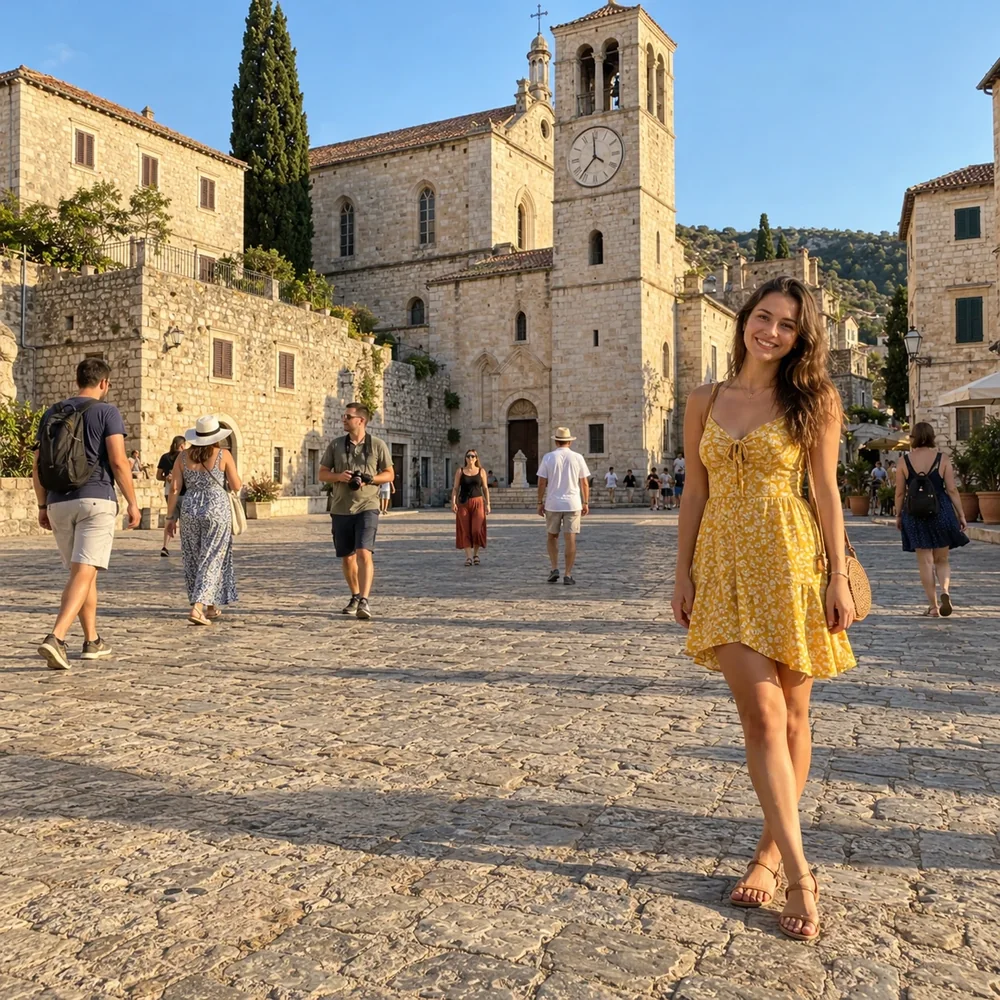

Travel photos


Shadows
JPG, PNG or WebP. Photos larger than 30 MP are scaled down first.
Cover them and their shadow, then press Remove. Each Remove uses 5 credits.
Save a PNG or JPG. Undo a step, or hold the eye button to compare with the original.
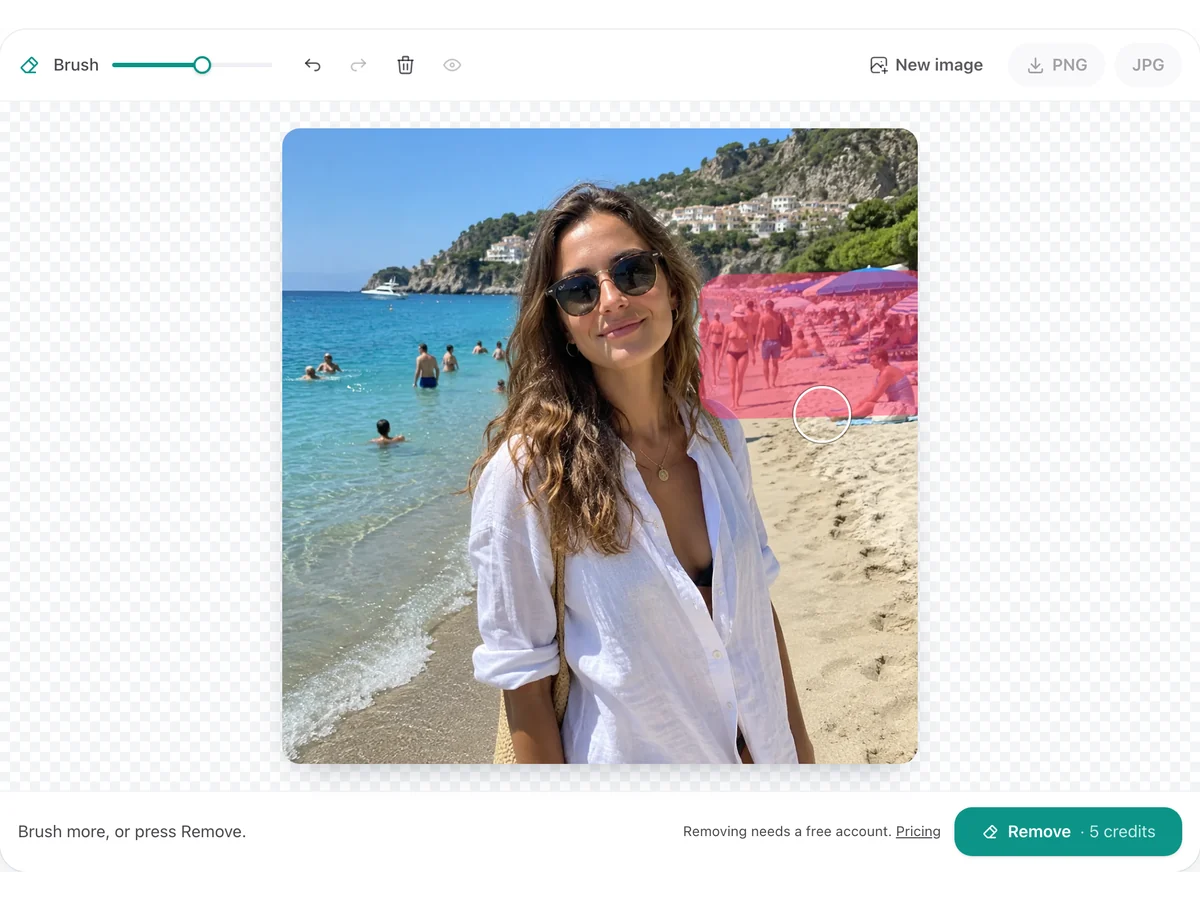
Signing up for PixRemove gives you 10 free credits, enough for 2 removals; each Remove uses 5 credits. After that, see pricing for credit packs and plans.
Yes. Brush over all of them and press Remove once, or take them out one at a time. Each Remove uses 5 credits, however many people it covers.
Brush over the shadow along with the person, then press Remove. The eraser also cleans shadows and reflections right next to your stroke.
No. Only the brushed area and its immediate surroundings are replaced; everything else keeps its original pixels.
The area around your brush is processed at its own resolution, up to 2048 px on its long side, then placed back into your photo. If an edge looks off, brush it again.
Every photo you clean is saved in Creations in your PixRemove account, so you can open or download it again later.
Sign up for 10 free credits — enough for 2 removals.